Once your card is issued, you can manage it directly from the Cards section in the app.
Each user may hold up to three (3) active cards at a time.
Access Your Card
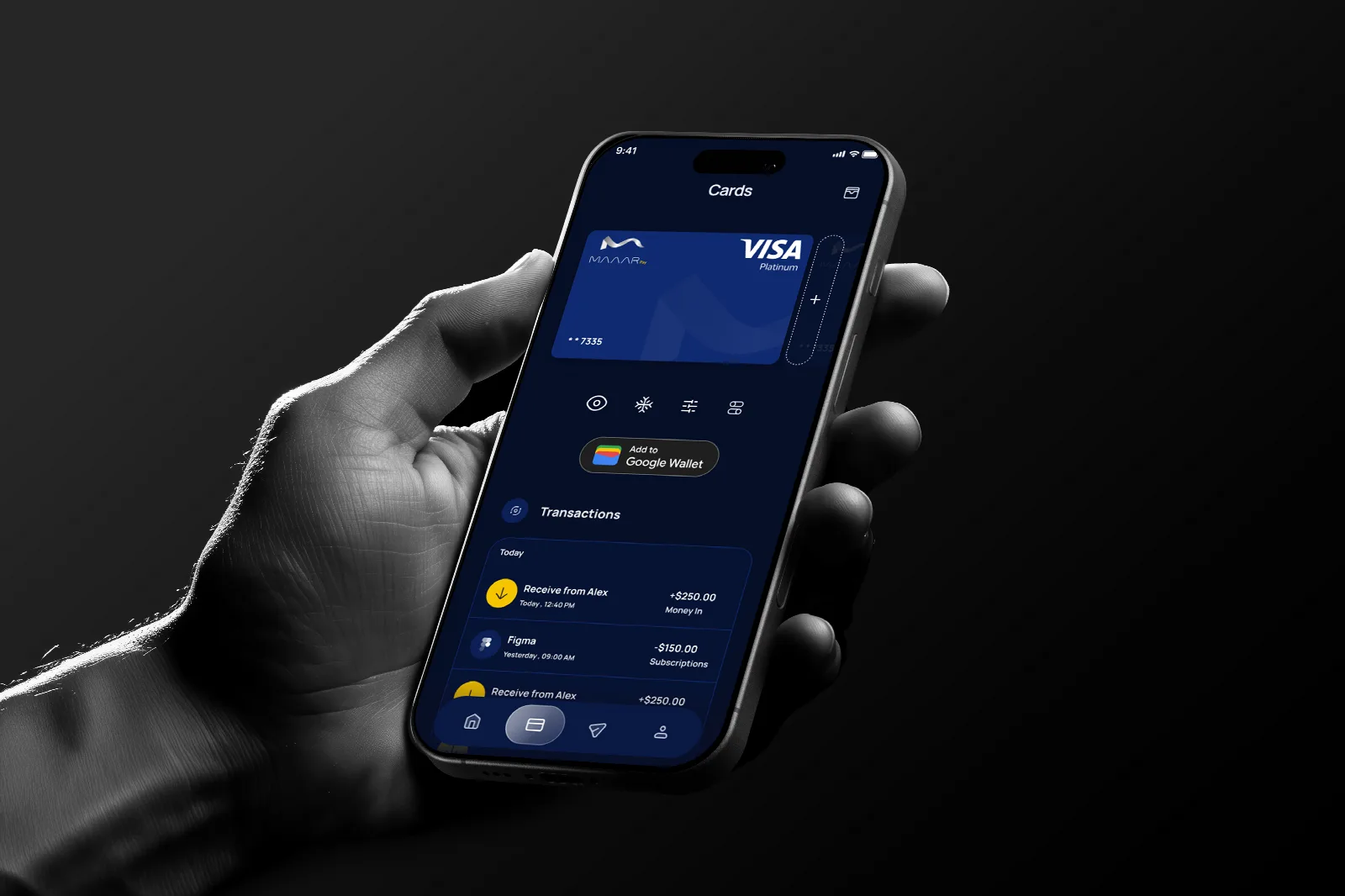
Log in to your MAAARPay account.
Tap the Card icon at the bottom of the screen.
If you have more than one active card:
You can swipe left or right to switch between your cards.
Each card screen displays its own details and settings.
From each card screen, you can:
View card details
Check your wallet balance
Monitor your available spending balance
View transaction history
Freeze or Unfreeze Your Card
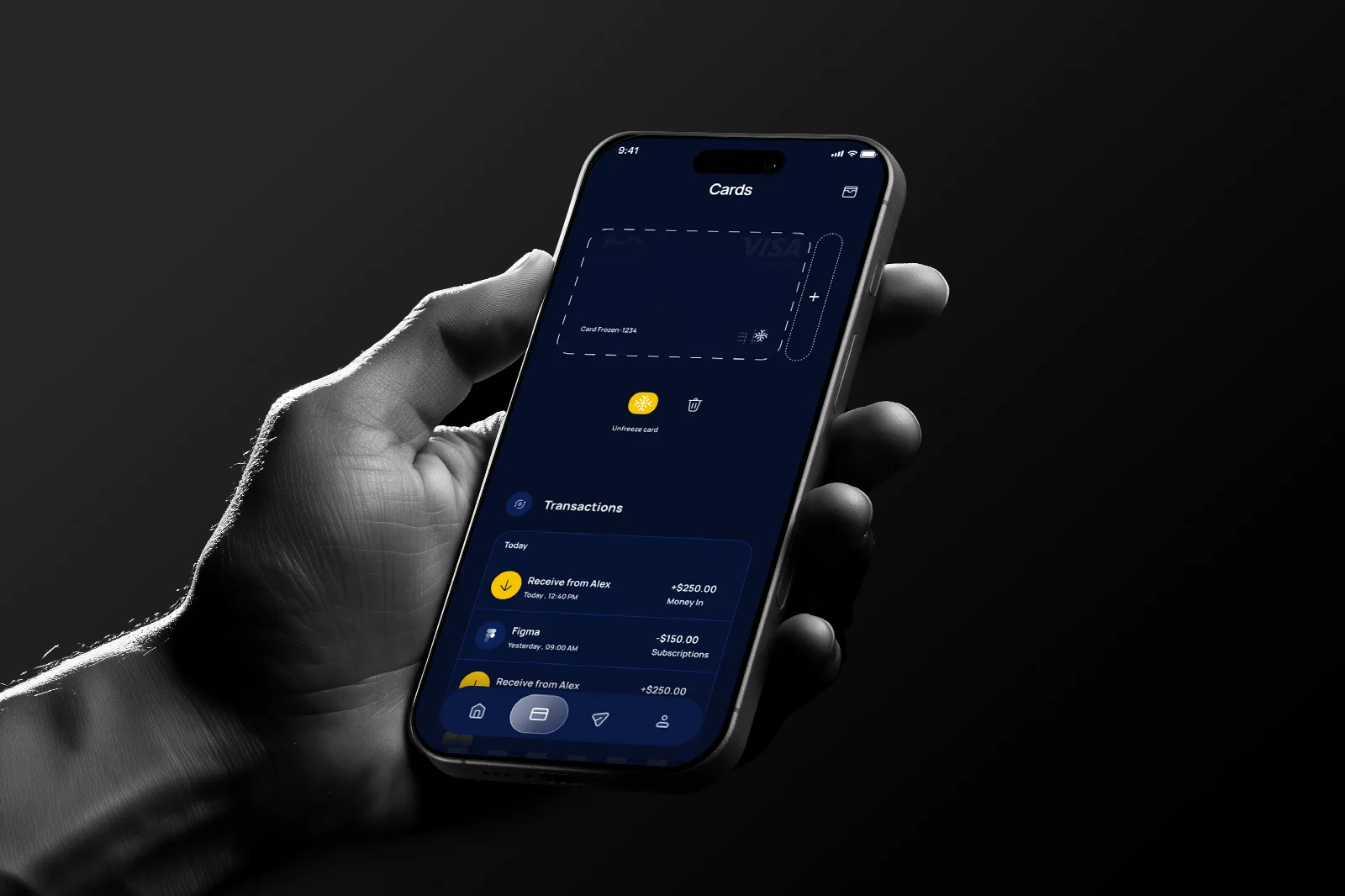
You can temporarily freeze your card if needed.
Freezing a card prevents new transactions from being processed.
You can unfreeze it at any time from the same screen.
Set Card Spending Limits
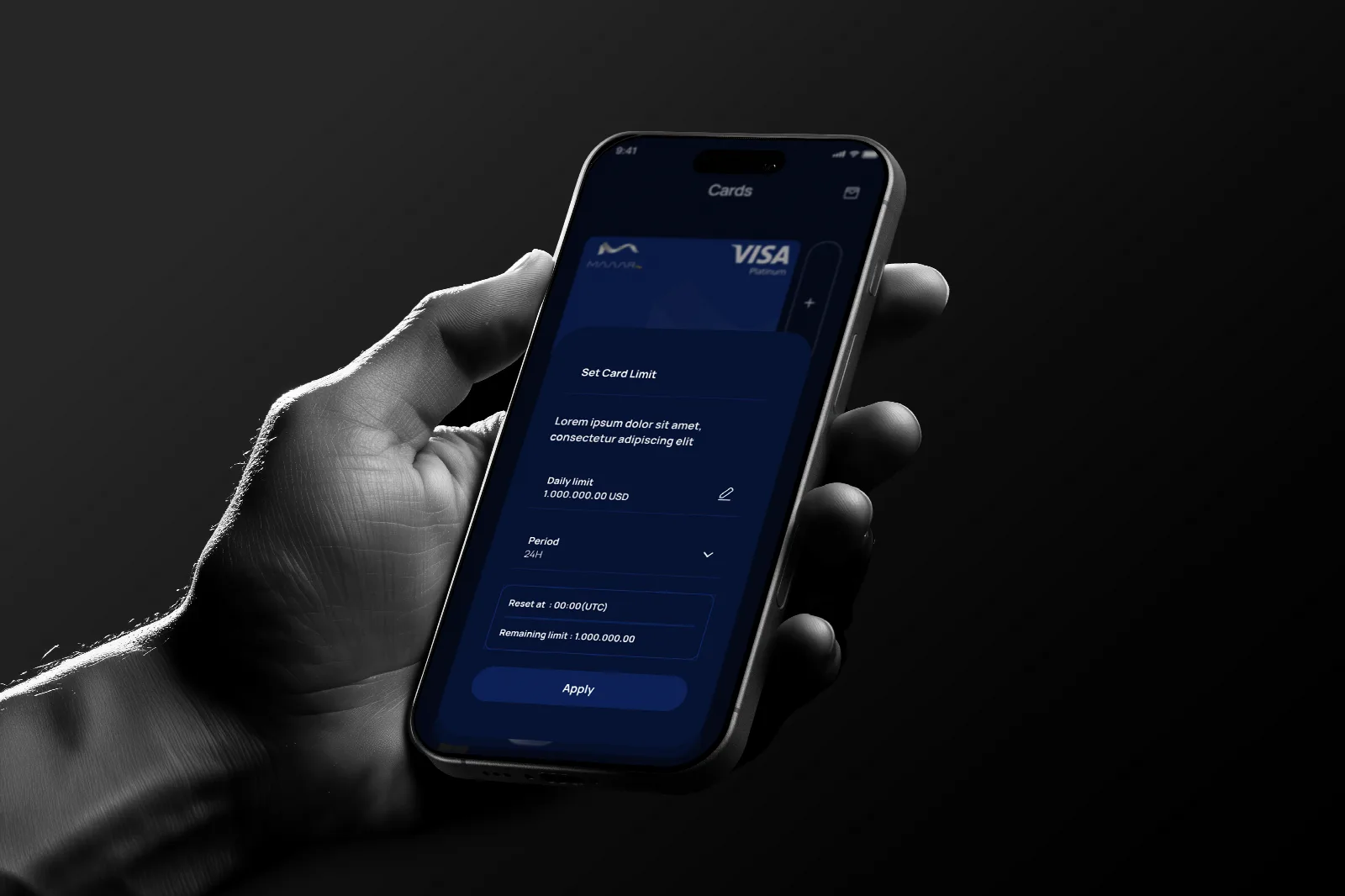
You can manage your card settings by:
Setting spending limits
Adjusting usage controls
Changes take effect immediately once confirmed.
Update Billing Address
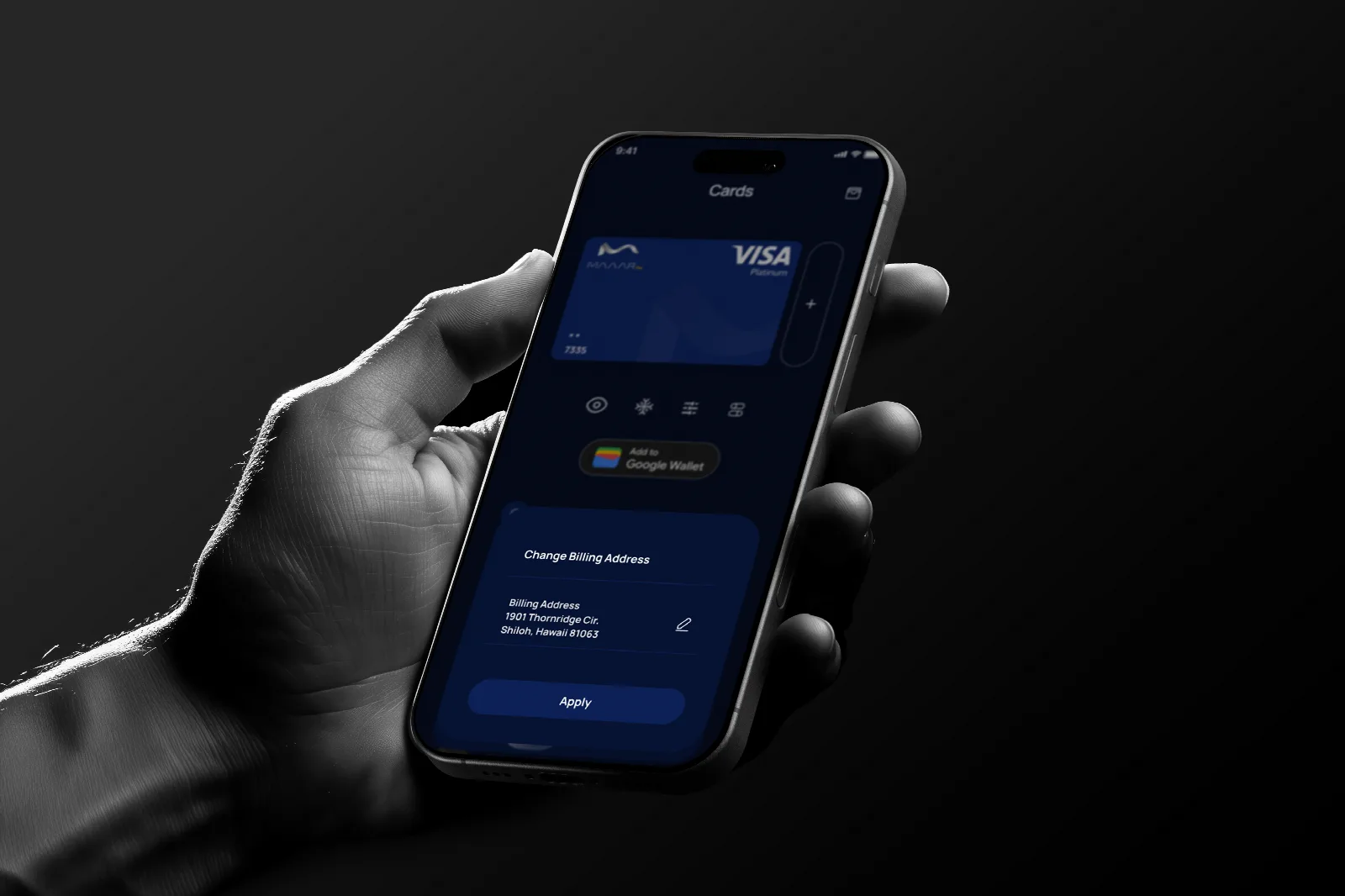
You can update your billing address directly from the card management screen.
Ensure that your information remains accurate and up to date.
Customize Your Card
You can personalize your card by selecting a different available color within the app.
Add to Google Wallet
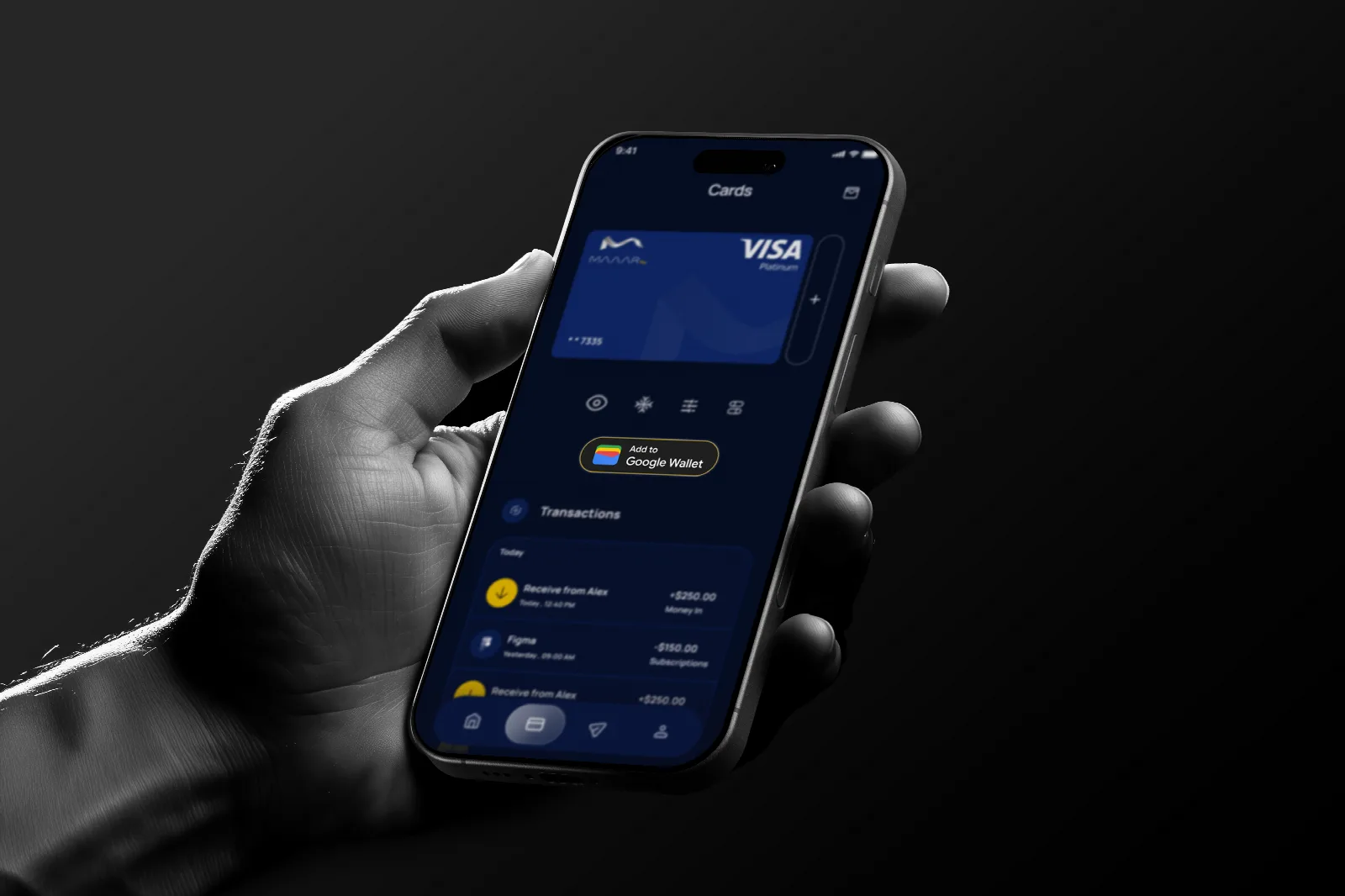
You can add your virtual card to Google Wallet from the card screen.
When selected, a step-by-step tutorial will guide you through the setup process.
Follow the in-app instructions to complete the integration.
View Card Transactions
All card transactions are available in the Transactions section.
Each transaction displays:
Merchant information
Transaction amount
Date
Status